Note
Access to this page requires authorization. You can try signing in or changing directories.
Access to this page requires authorization. You can try changing directories.
Azure file shares have public endpoints and can have one or more private endpoints. The network paths available to clients depend on the protocol and network rules. Azure File Sync provides a caching option for classic SMB file shares. To learn more, see Introduction to Azure File Sync.
For broader deployment considerations, see Plan an Azure Files deployment. For configuration steps, see Configure network endpoints for Azure file shares.
Two protocol differences affect network design:
SMB uses TCP port 445, which some organizations and internet service providers block for outbound traffic. Private connectivity through VPN or ExpressRoute provides an alternative path.
NFS uses network-based authentication. Clients connect through private endpoints or through service endpoints from allowed virtual network subnets.
Encryption in transit
Encryption in transit protects the confidentiality and integrity of data between clients and Azure Files, including protection against interception or modification by a man-in-the-middle attacker. This protection applies over both public and private endpoints. Encryption and network access rules have separate purposes: encryption protects the connection, while network rules determine which clients can reach the service.
Encryption in transit for SMB
SMB 3.x protects data through SMB channel encryption. Azure Files supports AES-128-CCM with SMB 3.0, and AES-128-GCM and AES-256-GCM with SMB 3.1.1. The encryption algorithm depends on the capabilities of the client and the algorithms allowed by the service. SMB 2.1 doesn't support channel encryption.
Restricting the allowed algorithms can affect client compatibility. For example, older Windows clients don't support AES-256-GCM. Channel encryption protects file data on the connection; Kerberos ticket encryption protects authentication tickets. These are separate controls. For client support and configuration, see SMB security settings.
Encryption in transit for NFS
NFS file shares support encryption through TLS tunneling. The AZNFS mount helper uses stunnel to carry NFS traffic through an encrypted connection between the client and Azure Files. AZNFS supports TLS 1.2 and TLS 1.3 and validates the server's certificate. Applications continue to use the NFS protocol without implementing TLS themselves.
TLS protects data in transit but doesn't add user-based authentication to NFS. Network access rules and file permissions still govern access. For encrypted mount instructions, see Encrypt data in transit for NFS shares.
Encryption in transit for FileREST
FileREST protects data in transit through HTTPS. Azure Files supports TLS 1.2 and TLS 1.3 for HTTPS connections. Requiring HTTPS rejects unencrypted HTTP requests; a minimum TLS version requirement controls which TLS versions clients can use.
FileREST data access is available for classic file shares.
Encryption configuration guides
The following guides describe how to view and change Encryption requirements and default:
SMB encryption, NFS encryption, and HTTPS requirements for FileREST.
Public endpoint
A public endpoint has a public IP address. A public address doesn't imply unrestricted access: protocol requirements, network rules, and authorization determine whether a request is allowed.
The protocols have different rules for public endpoint access.
SMB: Encrypted SMB 3.x connections can originate inside or outside Azure, subject to network rules and authorization. Unencrypted SMB connections are limited to clients in the same Azure region and require a configuration that permits unencrypted access.
NFS: Clients can only access the public endpoint through a service endpoint from an allowed subnet. NFS doesn't support direct access from internet clients.
FileREST: Clients access file data through REST requests. HTTPS protects these requests in transit. Network rules and authorization apply independently of whether HTTPS is required.
Inbound network access
Network rules control inbound access to the public endpoint. Classic file shares support access from selected virtual network subnets. Classic SMB and FileREST access can also use IP address rules. NFS access requires service endpoints and allowed subnets.
A service endpoint carries traffic from a virtual network subnet to Azure Files over the Azure backbone. Traffic still uses the public endpoint's IP address. The networking layer identifies the source subnet so the service can check it against the allowed networks.
Disabling public network access also prevents client access through service endpoints. Private endpoint access is independent of this setting. For classic file shares, existing trusted service exceptions can remain in effect.
For configuration steps, see Restrict public endpoint access.
Restrict outbound access with service endpoint policies
Network rules for a file share control inbound access. They don't restrict clients' outbound destinations. For example, a client that can read a file share could copy data to another resource it has permission to write to.
For classic file shares, you can optionally use a service endpoint policy to limit which storage accounts clients in a subnet can access through service endpoints. The policy applies to all clients in that subnet. The destination's network rules and authorization requirements still apply.
Service endpoint policies work alongside other network controls:
- Service endpoint routes override user-defined routes (UDRs) for the matching service address prefixes. Traffic routed through a service endpoint doesn't go through Azure Firewall or a network virtual appliance (NVA), so these devices can't inspect or log it. For more information, see Virtual network service endpoints.
- Network security group (NSG) rules can use service tags such as
Storage.ChinaEast2to restrict outbound traffic to a region. Service tags can't restrict traffic to a specific storage account.
The policy's allow list can contain individual storage accounts, resource groups, or subscriptions. The policy blocks clients in the associated subnet from accessing other storage accounts through service endpoints. It doesn't restrict other outbound paths from the subnet.
Service endpoint policies don't apply to private endpoint traffic.
To configure a service endpoint policy, see Restrict outbound access to specific storage accounts.
Azure portal access
Opening a resource in the Azure portal and accessing its file data are separate operations. For classic file shares, browsing data sends FileREST requests from the browser to the file service endpoint. Those requests are subject to the storage account's network rules. Access to the portal alone doesn't grant network access to file data.
For classic file share browsing requirements and troubleshooting, see Authorize access to file data in the Azure portal.
Private endpoints
A private endpoint provides a private IP address in your virtual network for access to a file share.
Each private endpoint is associated with a virtual network subnet. Multiple private endpoints can provide access to the same file share from different virtual networks.
Clients can reach a private endpoint from its virtual network, peered virtual networks, or connected on-premises networks.
Private and public endpoints can coexist. Creating a private endpoint doesn't disable public access or restrict other outbound paths from clients.
To create a private endpoint, see Configuring private endpoints for Azure Files.
Private connectivity from on-premises
VPN and ExpressRoute provide connectivity between on-premises clients and private endpoints in an Azure virtual network. This approach applies to both SMB and NFS.
The connection options differ in scope and transport:
Point-to-site VPN
A point-to-site VPN connects an individual client to an Azure virtual network. It supports remote users and devices that aren't connected through an organization's site network. For supported protocols and setup guides, see About point-to-site VPN.
Site-to-site VPN
A site-to-site VPN connects an organization's network to an Azure virtual network through a VPN gateway. Clients on the connected network share that connection. For architecture and setup guides, see Site-to-site VPN.
ExpressRoute
ExpressRoute private peering connects an on-premises network to Azure virtual networks without traversing the public internet. It provides a private connectivity option for workloads with network performance or organizational requirements. Application-level encryption remains a separate consideration. For connectivity options and setup guides, see ExpressRoute overview.
DNS resolution
DNS determines whether a file share's host name resolves to a public or private IP address. Clients use the same host name for either path. Within a network that uses private DNS for the share, the name resolves to the private endpoint's IP address. Clients using public DNS resolve it to the public endpoint instead.
On-premises clients need access to the private DNS records as well as a network route to the private endpoint. A VPN or ExpressRoute connection alone doesn't provide private DNS resolution. DNS forwarding or Azure DNS Private Resolver can provide that resolution.
For configuration and verification, see:
- Create a private endpoint with DNS integration and verify connectivity, for both resource providers.
- Azure private endpoint DNS integration, for on-premises DNS designs.
- Configure DNS forwarding for classic file shares, for Azure Files-specific examples.
SMB over QUIC
SMB over QUIC carries SMB traffic over UDP port 443, providing an alternative when TCP port 445 is unavailable. A compatible Windows Server file server provides the QUIC endpoint, and clients need SMB over QUIC support.
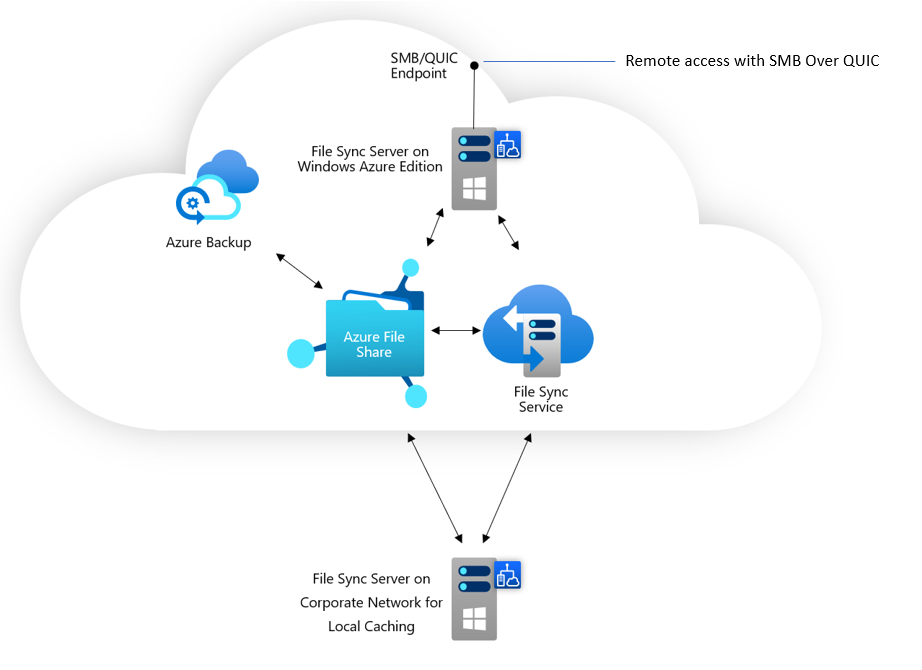
Currently, Azure Files doesn't support SMB over QUIC directly. You can access a Windows Server cache of a classic SMB file share through Azure File Sync, as shown in the following diagram. This option doesn't apply to NFS. You can deploy Azure File Sync caches on-premises or in Azure datacenters. To learn more, see the Windows Server documentation. For Azure File Sync-specific networking details, see SMB over QUIC.