本文介绍如何使用 Azure PowerShell 在本地网络与基于 X.509 证书的身份验证的 Azure 虚拟网络之间创建站点到站点 (S2S) VPN 网关连接。 与 VPN 连接的预共享密钥(PSK)相比,证书身份验证提供更强大的安全性。
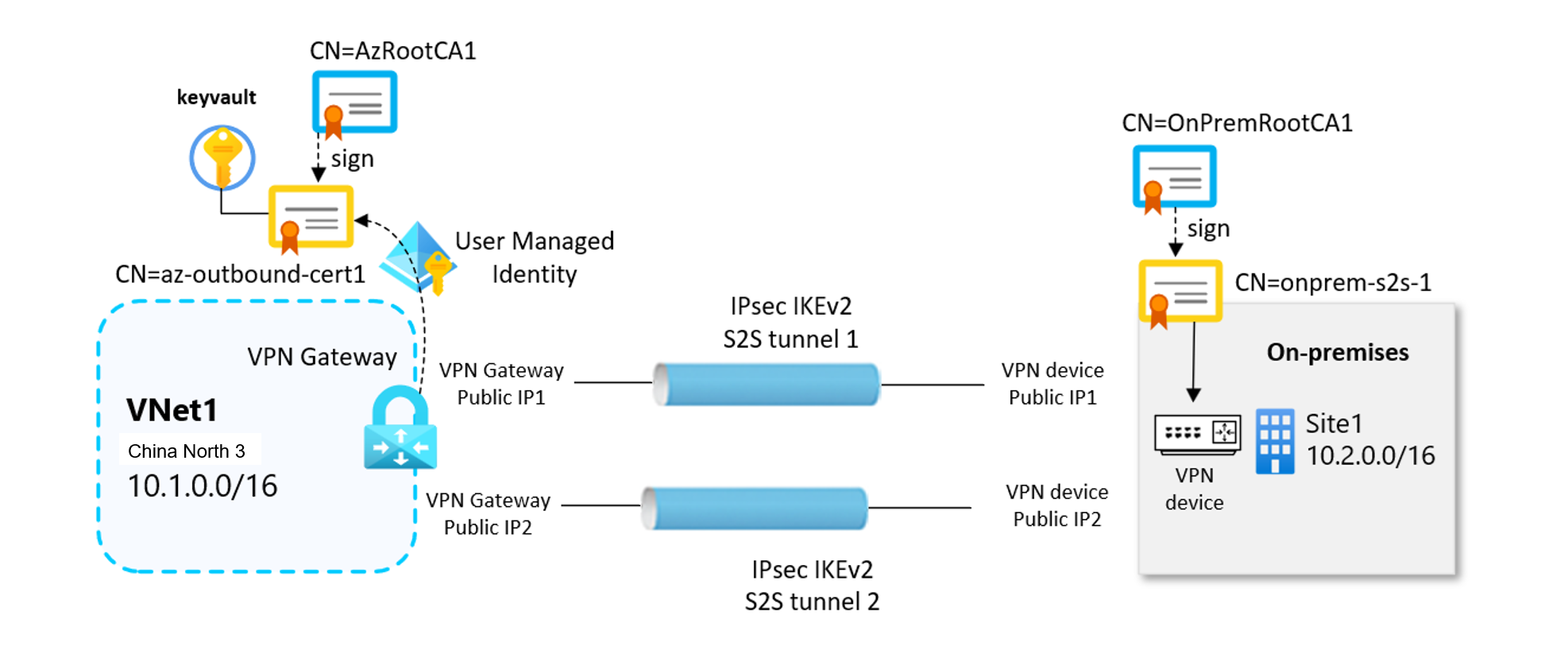
站点到站点证书身份验证依赖于入站和出站证书来建立安全的 VPN 隧道。 证书安全地存储在 Azure Key Vault 中,每个 VPN 网关通过 User-Assigned 托管标识访问其证书。 有关证书以及证书流的工作原理的详细信息,请参阅 关于使用证书身份验证的站点到站点 VPN 连接。
重要
基本 SKU VPN 网关不支持站点到站点证书身份验证。 建议使用 VpnGw1AZ 或更高版本。
重要
站点到站点证书身份验证目前为预览版。 有关适用于 beta 版、预览版或尚未正式发布的 Azure 功能的法律条款,请参阅 Azure 预览补充使用条款。
在本文中,你将生成所需的证书,创建所需的 Azure 资源,并使用 Azure PowerShell 配置站点到站点 VPN 连接。
在您开始之前
若要完成本文中的步骤,请确保满足以下先决条件:
- 拥有有效订阅的 Azure 帐户。 如果没有,可以创建一个试用帐户。
- 在本地安装了 Azure PowerShell。 有关详细信息,请参阅 安装 Azure PowerShell 模块。
- 运行 Windows 10 或更高版本的 Windows 计算机,或 Windows Server 2016 或更高版本(证书生成所必需的)。
- 熟悉本地网络配置中的 IP 地址范围。
- 兼容的 VPN 设备和可以对其进行配置的人员。 有关兼容的 VPN 设备的详细信息,请参阅 “关于 VPN 设备”。
- 本地 VPN 设备的面向外部的公共 IPv4 地址。
- 确保本地网络的子网不会与要连接到的虚拟网络子网重叠。
生成数字证书
首先,生成自签名根 CA 证书和 VPN 身份验证所需的叶证书。 根 CA 证书建立信任链,用于对叶证书进行签名。
可以使用两个选项:
- 使用相同的根证书为 Azure VPN 网关和本地设备的叶证书进行签名。
- 使用单独的根证书,一个根证书用于签署 Azure VPN 网关的叶证书,另一个根证书用于签署本地 VPN 设备的叶证书。
在以下示例中,使用了两个根证书:一个根证书对用于从 Azure 到本地的出站身份验证的叶证书进行签名,另一个根证书用于对本地设备的叶证书进行签名。
创建自签名根 CA 证书
使用 New-SelfSignedCertificate cmdlet 创建自签名根证书。 以下示例创建名为 VPNRootCA1 的自签名根证书,该证书自动安装在 “Certificates-Current User\Personal\Certificates”中。 创建证书后,可以通过打开 certmgr.msc 或管理用户证书来查看它。
在使用此示例之前,请进行任何所需的修改。 “NotAfter”参数是可选的。 默认情况下,如果没有此参数,证书将在 1 年后过期。 使用提升的权限从 Windows PowerShell 控制台运行以下命令。
# Define Root certificate subjects for Azure
$azureRootcertSubject1 = 'CN=AzRootCA1'

# Create Root Certificate for Azure
$params = @{
    Type              = 'Custom'
    Subject           = $azureRootcertSubject1
    KeySpec           = 'Signature'
    KeyExportPolicy   = 'Exportable'
    KeyUsage          = 'CertSign'
    KeyUsageProperty  = 'Sign'
    KeyLength         = 2048
    HashAlgorithm     = 'sha256'
    NotAfter          = (Get-Date).AddMonths(120)
    CertStoreLocation = 'Cert:\CurrentUser\My'
    TextExtension     = @('2.5.29.19={critical}{text}ca=1&pathlength=4')
}
$azureRootcert = New-SelfSignedCertificate @params

# Assign the certificate subjects for the on-premises
$onpremRootcertSubject1 = 'OnPremRootCA1'
# Create a self-sign Root Certificate for the on-premises site
$params = @{
    Type              = 'Custom'
    Subject           = $onpremRootcertSubject1
    KeySpec           = 'Signature'
    KeyExportPolicy   = 'Exportable'
    KeyUsage          = 'CertSign'
    KeyUsageProperty  = 'Sign'
    KeyLength         = 2048
    HashAlgorithm     = 'sha256'
    NotAfter          = (Get-Date).AddMonths(120)
    CertStoreLocation = 'Cert:\CurrentUser\My'
    TextExtension     = @('2.5.29.19={critical}{text}ca=1&pathlength=4')
}
$onpremRootcert = New-SelfSignedCertificate @params
运行上述命令后,使 PowerShell 控制台保持打开状态,因为需要在后续步骤中引用生成的证书。
生成由根 CA 证书签名的叶证书
生成由根证书签名的叶证书。 这些证书用于站点到站点 VPN 身份验证。 这些示例使用 New-SelfSignedCertificate cmdlet 生成出站和入站叶证书。 创建后,证书会自动安装在 Windows 计算机上的 “Certificates - Current User\Personal\Certificates” 中。
为 VPN 网关创建出站证书
# Assign the leaf certificate subjects for the VPN gateway
$azureLeafcertSubject1 = 'CN=az-outbound-cert1'
$certPassword = '12345'

# Get the Root certificates from certificate store
$azureRootcert = Get-ChildItem -Path Cert:\CurrentUser\My | Where-Object { $_.Subject -eq $azureRootcertSubject1 }

# Create Leaf Certificate (signed by Azure Root CA)
$params = @{
    Type              = 'Custom'
    Subject           = $azureLeafcertSubject1
    KeySpec           = 'Signature'
    KeyExportPolicy   = 'Exportable'
    KeyLength         = 2048
    HashAlgorithm     = 'sha256'
    NotAfter          = (Get-Date).AddMonths(120)
    CertStoreLocation = 'Cert:\CurrentUser\My'
    Signer            = $azureRootcert
    TextExtension     = @('2.5.29.37={text}1.3.6.1.5.5.7.3.2,1.3.6.1.5.5.7.3.1')
}
$azureLeafcert = New-SelfSignedCertificate @params
为本地设备创建出站证书
# Assign leaf certificate subjects for the on-premises device
$onpremLeafcertSubject1 = 'CN=onprem-s2s-1'

# Get the on-premises Root certificate from the certificate store
$onpremRootcert = Get-ChildItem -Path Cert:\CurrentUser\My | Where-Object { $_.Subject -eq $onpremRootcertSubject1 }

# Create Leaf Certificate 1 (signed by on-premsies Root CA)
$params = @{
    Type              = 'Custom'
    Subject           = $onpremLeafcertSubject1
    KeySpec           = 'Signature'
    KeyExportPolicy   = 'Exportable'
    KeyLength         = 2048
    HashAlgorithm     = 'sha256'
    NotAfter          = (Get-Date).AddMonths(120)
    CertStoreLocation = 'Cert:\CurrentUser\My'
    Signer            = $certRootOnPrem
    TextExtension     = @('2.5.29.37={text}1.3.6.1.5.5.7.3.2,1.3.6.1.5.5.7.3.1')
}
$onpremLeafcert1 = New-SelfSignedCertificate @params
注释
在本地设备的 Windows 主机上生成根证书和叶证书仅显示为演示正确设置工作流的示例。 由于证书创建因设备而异,因此请参阅供应商的文档,获取有关生成所需根证书和叶证书并将其导入到本地设备的说明。
导出证书
将根证书导出为 Base64 格式(.cer),并将叶证书导出为 PKCS#12 格式(.pfx)。
$certPath="PATH_TO_LOCAL_FOLDER_TO_STORE_EXPORTED_CERTIFICATES"

# password used in export certificates
$certPassword = '12345'

# Export root certificates
$azureRootcert = Get-ChildItem -Path Cert:\CurrentUser\My | Where-Object { $_.Subject -eq $azureRootcertSubject1 }

# Export to DER format first
Export-Certificate -Cert $azureRootcert -FilePath "$certPath\AzRootCA1.cert" -Force

# Convert the Root certificate in Base64-encoded PEM format
certutil -encode "$certPath\AzRootCA1.cert" "$certPath\AzRootCA1.cer"

# Export leaf certificates as PFX (with private key)
$mypwd = ConvertTo-SecureString -String $certPassword -Force -AsPlainText

$azureLeafcert1 = Get-ChildItem -Path Cert:\CurrentUser\My | Where-Object { $_.Subject -eq $azureLeafcertSubject1 }

Export-PfxCertificate -Cert $azureLeafcert1 -FilePath "$certPath\az-outbound-cert1.pfx" -Password $mypwd
声明 Azure 环境变量
后续部分引用以下代码块中定义的变量。 在运行代码之前,更新变量值以匹配环境。
# Azure subscription and resource group
$subscriptionName = '<your-subscription-name>'
$rgName = '<your-resource-group-name>'
$location = 'chinanorth3'

# Virtual network 1 configuration
$vnet1Name = 'vnet1'
$vnet1Address = '10.1.0.0/16'
$gw1SubnetAddress = '10.1.0.0/24'

# VPN gateway names
$gw1Name = 'gw1'
创建虚拟网络和网关子网
创建资源组。
# Create a Resource Group
$rg = New-AzResourceGroup -Name $rgName -Location $location -Force

# Add tags for organization
Set-AzResourceGroup -Name $rgName -Tags @{ usage = "s2s-digitalcert" }
使用网关子网创建虚拟网络。 网关子网必须命名为 GatewaySubnet,并且应为 /27 或更高版本。
# Create Virtual Network VNet1
$vnet1 = New-AzVirtualNetwork -ResourceGroupName $rgName -Name $vnet1Name `
    -AddressPrefix $vnet1Address -Location $location

# Add subnets to VNet1
Add-AzVirtualNetworkSubnetConfig -Name 'GatewaySubnet' -VirtualNetwork $vnet1 `
    -AddressPrefix $gw1SubnetAddress
Set-AzVirtualNetwork -VirtualNetwork $vnet1
重要
在网关子网中,不支持网络安全组。 将 NSG 关联到此子网可能会导致虚拟网络网关停止按预期运行。
创建用户分配的托管标识
此配置需要托管标识。 VPN 网关使用用户分配的托管标识安全地访问存储在 Azure Key Vault 中的证书。 有关托管标识的详细信息,请参阅什么是 Azure 资源托管标识?。
创建托管标识名称时,请使用直观的内容,例如 gw1-s2s-kv 或 vpngwy-managed。 需要 Key Vault 配置步骤的名称。 资源组不必与用于 VPN 网关的资源组相同。
# Create managed user identity for VPN Gateway to access to the Azure Keyvault
$gw1UserIdentityName = 'gw1-s2s-kv'
$gw1UserIdentity = New-AzUserAssignedIdentity -ResourceGroupName $rgName `
    -Name $gw1UserIdentityName -Location $location
用户分配的托管标识名称不需要在订阅中全局唯一。 它只需要在其创建所在的资源组中是唯一的。
创建 Key Vault 并配置 RBAC 权限
此配置需要 Azure Key Vault。 创建 Key Vault 来存储证书并配置 RBAC 权限,以便进行安全访问。 有关 Azure Key Vault 的详细信息,请参阅 Azure Key Vault 概述。
注释
使用 Azure 门户创建 Key Vault 进行证书身份验证时,请确保选择 Azure 基于角色的访问控制 作为访问配置的权限模型。 这是建议的方法。
# Generate a globally unique Azure Key Vault name.
# Key Vault names must be unique across all Azure regions and must not exceed 24 characters.
$suffix1 = "ALFANUMERIC_VALUE"
$keyVault1Name = "kv-$suffix1"

# Deleting the Keyvault in removed state to avoid failure
Remove-AzKeyVault -VaultName $keyVault1Name -Location $location -InRemovedState -Force -ErrorAction SilentlyContinue

# Create Key Vault 1 - Azure RBAC is the default access control model for the newly created vaults
$keyVault1 = New-AzKeyVault -VaultName $keyVault1Name -ResourceGroupName $rgName -Location $location
将 RBAC 角色分配给托管标识
授予托管标识在 Key Vault 中使用 Azure RBAC 访问证书的所需权限。
# Define RBAC role IDs
$secretsUserRoleId = "4633458b-17de-408a-b874-0445c86b69e6"  # build-in role for Key Vault Secrets User
$certUserRoleId = "db79e9a7-68ee-4b58-9aeb-b90e7c24fcba"     # build-in role for Key Vault Certificate User
$certOfficerRoleId = "a4417e6f-fecd-4de8-b567-7b0420556985"  # build-in role for Key Vault Certificates Officer

# Assign Key Vault Certificates Officer role to current user (required to import certificates)
$currentUser = (Get-AzContext).Account.Id
$currentUserObjectId = (Get-AzADUser -UserPrincipalName $currentUser).Id
Write-Host "Assigning Key Vault Certificates Officer role to current user: $currentUser"
New-AzRoleAssignment -ObjectId $currentUserObjectId `
    -RoleDefinitionId $certOfficerRoleId -Scope $keyVault1.ResourceId

# Assign RBAC roles to user managed identity to acces to the Key Vault 1
New-AzRoleAssignment -ObjectId $gw1UserIdentity.PrincipalId `
    -RoleDefinitionId $secretsUserRoleId -Scope $keyVault1.ResourceId
New-AzRoleAssignment -ObjectId $gw1UserIdentity.PrincipalId `
    -RoleDefinitionId $certUserRoleId -Scope $keyVault1.ResourceId
RBAC 权限更改不会立即生效。 最佳做法是,允许角色分配的更新传播大约两分钟,然后再验证权限是否已到达用户分配的托管身份。 如果尚未传播 RBAC,后续步骤可能会失败。
注释
Azure 建议使用 Azure RBAC 进行 Key Vault 访问控制,而不是使用旧版访问策略模型。 有关详细信息,请参阅 从访问策略迁移到 Azure RBAC。
将证书导入 Key Vault
将包含私钥的出站叶证书上传到 Azure Key Vault。 证书文件必须采用 .pfx 格式。
# Import leaf certificate in the Key Vault 1
$certPath="PATH_TO_LOCAL_FOLDER_TO_STORE_EXPORTED_CERTIFICATES"
$gw1OutboundCertName = 'gw1-cert'
$certPassword = ConvertTo-SecureString -String "12345" -Force -AsPlainText

Import-AzKeyVaultCertificate -VaultName $keyVault1Name -Name $gw1OutboundCertName `
    -FilePath "$certPath\az-outbound-cert1.pfx" -Password $certPassword
为 VPN 网关创建公共 IP 地址
为 VPN 网关创建区域冗余的标准 SKU 公共 IP 地址。 VPN 网关配置在双活模式下,这时需要两个公共 IP 地址。
# Create public IP for Gateway 1
$gw1pubIP1Name = $gw1Name + "pip1"
Write-Host "Creating public IP: $gw1pubIP1Name"
$gw1pubIP1 = New-AzPublicIpAddress -ResourceGroupName $rgName -Name $gw1pubIP1Name `
    -Location $location -AllocationMethod Static -Sku Standard -Tier Regional `
    -Zone @("1", "2", "3")

# Create public IP for Gateway 2
$gw1pubIP2Name = $gw1Name + "pip2"
Write-Host "Creating public IP: $gw1pubIP2Name"
$gw1pubIP2 = New-AzPublicIpAddress -ResourceGroupName $rgName -Name $gw1pubIP2Name `
    -Location $location -AllocationMethod Static -Sku Standard -Tier Regional `
    -Zone @("1", "2", "3")
创建 VPN 网关
创建 VPN 网关时,请指定用户分配的托管标识,以便网关可以访问 Key Vault 中的证书进行身份验证。 VPN 网关使用出站证书向本地 VPN 设备进行身份验证,并使用网关中配置的根证书链验证来自本地设备的传入连接。
使用用户分配的托管标识创建 VPN 网关,以便访问 Key Vault。
注释
VPN 网关部署可能需要 30-45 分钟。
# Get virtual network and subnet references
$vnet1 = Get-AzVirtualNetwork -ResourceGroupName $rgName -Name $vnet1Name
$gw1Subnet = Get-AzVirtualNetworkSubnetConfig -Name 'GatewaySubnet' -VirtualNetwork $vnet1

# Create IP configuration for Gateway 1
$gw1IpConfig = New-AzVirtualNetworkGatewayIpConfig -Name 'gw1-config' `
    -PublicIpAddress $gw1pubIP1 -Subnet $gw1Subnet

# Create VPN gateway 1 with user assigned managed identity and Key Vault access enabled
# Creation of VPN gateway may take 30-45 minutes
$gw1 = New-AzVirtualNetworkGateway -ResourceGroupName $rgName -Name $gw1Name `
    -Location $location `
    -IpConfigurations @($gw1IpConfig1, $gw1IpConfig2) `
    -GatewayType Vpn `
    -VpnType RouteBased `
    -EnableBgp $false `
    -GatewaySku VpnGw2AZ `
    -EnableActiveActiveFeature `
    -VpnGatewayGeneration Generation2 `
    -UserAssignedIdentityId $gw1UserIdentity.Id
可以使用以下命令检查 VPN 网关预配状态。
write-host "vpn gateway provisioning state: "$gw1.ProvisioningState
创建本地网络网关
本地网络网关是代表用于路由的本地位置(站点)的特定对象。 可以为站点提供一个名称供 Azure 引用,然后指定本地 VPN 设备的 IP 地址,以便创建一个连接来连接到该设备。 此外还可指定 IP 地址前缀,以便通过 VPN 网关将其路由到 VPN 设备。 指定的地址前缀是位于本地网络的前缀。 如果之后本地网络发生了更改,或需要更改 VPN 设备的公共 IP 地址,可轻松更新这些值。
注释
本地网络网关对象部署在 Azure 中,而不是部署到本地位置。
配置注意事项:
- FQDN 支持: 如果你有动态公共 IP 地址,则可以将常量 DNS 名称与动态 DNS 服务一起使用,以指向当前的公共 IP 地址。 你的 Azure VPN 网关会解析 FQDN 来确定要连接到的公共 IP 地址。
- 单个 IP 地址: VPN 网关为每个 FQDN 仅支持一个 IPv4 地址。 如果域名解析为多个 IP 地址,VPN 网关会使用 DNS 服务器返回的第一个 IP 地址。 Azure 建议 FQDN 始终解析为单个 IPv4 地址。 不支持 IPv6。
- DNS 缓存: VPN 网关维护每隔 5 分钟刷新一次 DNS 缓存。 此网关仅尝试解析已断开连接的隧道的 FQDN。 重置网关也触发 FQDN 解析。
- 多个连接: 尽管 VPN 网关支持使用不同 FQDN 连接到不同本地网关的多个连接,但所有 FQDN 都必须解析为不同的 IP 地址。
创建本地网络网关来表示本地网络站点。 每个本地网络网关指定远程本地站点的公共 IP 地址和地址前缀。
# Get public IP addresses of the on-premises VPN device
$site1publicIP1 = "PUBLIC_IP_ADDRESS_1_ON_PREMISES_DEVICE"
$site1publicIP2 = "PUBLIC_IP_ADDRESS_2_ON_PREMISES_DEVICE"
$onpremAddressPrefix ="10.2.0.0/16"

# Create Local Network Gateway for the Site1
# The remote peer is the first on-premises public IP: $site1publicIP1
$localNetGwSite11Name = 'localNetSite11'
$localNetGwSite11 = New-AzLocalNetworkGateway -Name $localNetGwSite11Name `
    -ResourceGroupName $rgName `
    -Location $location `
    -AddressPrefix $onpremAddressPrefix `
    -GatewayIpAddress $site1publicIP1

# Create Local Network Gateway for the Site1
# The remote peer is the second on-premises public IP: $site1publicIP2
$localNetGwSite12Name = 'localNetSite12'
$localNetGwSite12 = New-AzLocalNetworkGateway -Name $localNetGwSite12Name `
    -ResourceGroupName $rgName `
    -Location $location `
    -AddressPrefix $onpremAddressPrefix `
    -GatewayIpAddress $site1publicIP2
配置本地 VPN 设备
要实现站点到站点连接到本地网络,需要使用 VPN 设备。 配置 VPN 设备时,需要以下值:
- 证书: 需要用于身份验证的证书数据。 创建 VPN 连接时,此证书也用作入站证书。
- 虚拟网络网关的公共 IP 地址值:若要使用 Azure 门户查找 VPN 网关 VM 实例的公共 IP 地址,请转到虚拟网络网关,并查看“设置属性”。> 如果您有双活模式网关(建议),请确保为每个 VPN 网关实例设置隧道。 这两条隧道都是同一连接的一部分。 双活模式 VPN 网关有两个公共 IP 地址,每个网关 VM 实例各有一个。
根据所用的 VPN 设备,有时可以下载 VPN 设备配置脚本。 有关详细信息,请参阅下载 VPN 设备配置脚本。 有关 VPN 设备配置资源,请参阅下表。
| 资源 | 说明 |
|---|---|
| VPN 设备 | 有关兼容的 VPN 设备的信息 |
| 已验证的 VPN 设备 | 设备配置链接 |
| 关于加密要求 | Azure VPN 网关的加密要求 |
| IPsec/IKE 参数 | IKE 版本、Diffie-Hellman 组、加密和哈希算法 |
| IPsec/IKE 策略配置 | 配置自定义 IPsec/IKE 策略 |
使用证书身份验证创建 VPN 连接
使用证书身份验证创建 VPN 连接。 每个连接都使用来自 Azure Key Vault 的出站证书,并针对远程站点的根证书链验证入站连接。
为 VPN 网关准备出站证书身份验证对象
使用以下命令获取对 Azure Key Vault 中存储的出站证书的引用,并为连接准备身份验证参数。
# Get certificate information from Key Vault
$gw1certOutbound = Get-AzKeyVaultCertificate -VaultName $keyVault1Name -Name $gw1OutboundCertName
$gw1OutboundCertUrl = $gw1certOutbound.Id
$gw1OutboundcertData = Get-AzKeyVaultCertificate -VaultName $keyVault1Name -Name $gw1OutboundCertName
$gw1OutboundcertSubjectName = $gw1OutboundcertData.Certificate.Subject -replace "^CN=", ""
$gw 1OutboundCertUrl 变量包含 Azure Key Vault 中出站证书的路径。 路径特定于证书,如下所示: https://your-keyvault.vault.azure.cn/certificates/certificate-name/<certificate-value> 若要检查该值,请使用以下命令。
Write-Host $gw1OutboundCertUrl
为 VPN 网关准备入站证书信息
在本部分中,以下步骤假设根证书已导出,并以名称RootOnPrem1.cer(Base64 编码)存储在本地计算机中的变量 $certPath 指定的路径上。同时,证书链已加载到变量 $onpremcertChainInbound1 中。 $onpremcertChainInbound 1 中的证书信息用于验证 VPN 网关中的传入入站证书,并且不包含私钥。
运行以下命令:
# Read inbound certificate chain files (Root CA certificates in Base64 format for on-premises device)
$certPath = "PATH_TO_LOCAL_FOLDER_TO_STORE_EXPORTED_CERTIFICATES"
$onpremInboundCert1Data = Get-Content -Path "$certPath\OnPremRootCA1.cer" -Raw

# Remove PEM headers and get only the encoded-Base64 certificate content
$onpremInboundCert1Base64 = $onpremInboundCert1Data -replace "-----BEGIN CERTIFICATE-----", "" `
    -replace "-----END CERTIFICATE-----", ""

$onpremcertChainInbound1 = @($onpremInboundCert1Base64)
使用中间 CA 时,应始终在入站证书部分中至少有两个证书。
重要
如果证书链中有中间证书颁发机构,请先将根证书添加为第一个中间证书,然后紧接着添加入站中间证书。
声明变量
在此阶段,我们假设本地设备的从属证书已创建,并且您可以检索证书的主题名称。 在本地设备上,从出站叶证书中提取公用名(CN)。 在示例工作流中,CN 是 s2s onprem1,但你应该验证自己环境中使用的 CN 值。 将从本地部署叶证书中提取的 CN 赋值给变量:
$onpremLeafcertSubject1="onprem-s2s-1"
不要在变量$onpremLeafcertSubject 1中包含“CN=”
创建证书身份验证对象
# Create certificate authentication object for Gateway 1
# Gateway 1 uses its own certificate for outbound, and trusts Root CA 2 for inbound
$gw1certAuth = New-AzVirtualNetworkGatewayCertificateAuthentication `
    -OutboundAuthCertificate $gw1OutboundCertUrl `
    -InboundAuthCertificateSubjectName $onpremLeafcertSubject1 `
    -InboundAuthCertificateChain $onpremcertChainInbound1
创建 VPN 连接
部署了两个连接,通过两个站点到站点隧道将 VPN 网关连接到本地设备:
# Get VPN gateway object
$gw1 = Get-AzVirtualNetworkGateway -Name $gw1Name -ResourceGroupName $rgName

# Create connection from Gateway1 to site1-tunnel1
$gw1Connection1Name = 'Connection11'
$vpnConnection11 = New-AzVirtualNetworkGatewayConnection -Name $gw1Connection1Name `
    -ResourceGroupName $rgName `
    -Location $location `
    -VirtualNetworkGateway1 $gw1 `
    -LocalNetworkGateway2 $localNetGwSite11 `
    -ConnectionType IPsec `
    -AuthenticationType "Certificate" `
    -CertificateAuthentication $gw1certAuth

# Create connection from Gateway1 to site1-tunnel2
$gw1Connection2Name = 'Connection12'
$vpnConnection12 = New-AzVirtualNetworkGatewayConnection -Name $gw2Connection1Name `
    -ResourceGroupName $rgName `
    -Location $location `
    -VirtualNetworkGateway1 $gw1 `
    -LocalNetworkGateway2 $localNetGwSite12 `
    -ConnectionType IPsec `
    -AuthenticationType "Certificate" `
    -CertificateAuthentication $gw2certAuth
验证 VPN 连接
创建连接后,验证 VPN 网关设置:
# Verify connection was created successfully
write-host "gw1-connection name....: "$vpnConnnection11.Name
write-host "gw1-auth type..........: "$vpnConnnection11.AuthenticationType
write-host "gw1-cert authetication.: "$vpnConnnection11.CertificateAuthentication
write-host "gw1-outboundCertUrl....: "$vpnConnnection11.CertificateAuthentication.OutboundAuthCertificate
write-host "gw1-Inbound CertSubject: "$vpnConnnection11.CertificateAuthentication.InboundAuthCertificateSubjectName

# Verify the status of VPN tunnels
$connection1 = Get-AzVirtualNetworkGatewayConnection -Name $gw1Connection1Name `
    -ResourceGroupName $rgName
$connection2 = Get-AzVirtualNetworkGatewayConnection -Name $gw1Connection2Name `
    -ResourceGroupName $rgName

Write-Host "Connection 1 Status: $($connection1.ConnectionStatus)"
Write-Host "Connection 2 Status: $($connection2.ConnectionStatus)"
成功建立 VPN 隧道后,连接状态应显示为 “已连接”。
还可以在 Azure 门户中验证连接:
- 进入门户中的虚拟网络网关。
- 在左窗格中选择“连接”。
- 验证连接状态是否显示“已连接”。
后续步骤
连接完成后,可以配置其他 VPN 网关设置。 如需了解更多信息,请参阅以下文章: